How to Put a Countdown on Your iPhone Home Screen and Lock Screen
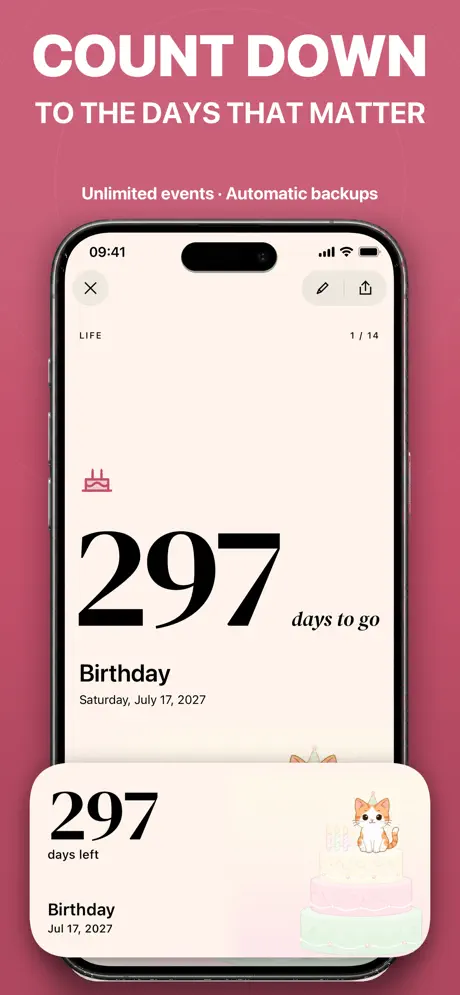
You add a countdown to your iPhone Home Screen by touching and holding an empty area until the icons jiggle, tapping Edit and then Add Widget (the + button on iOS 17), and choosing a countdown widget; the Lock Screen works the same way through Customize. Once it is placed you can move it, add another size next to it, and point it at any event you have set up in a countdown app such as Countdown Widget: Any Event (Countdown).
Add a widget to your Home Screen
The steps are the same for any app with widgets; only the second step differs between iOS versions:
- Touch and hold an empty area of the Home Screen until the apps start to jiggle.
- On iOS 18, tap Edit in the top-left corner, then Add Widget. On iOS 17, tap the + button in the top-left corner.
- Search for Countdown, then swipe to pick a widget and size.
- Tap Add Widget, then drag it to where you want it.
- Tap Done to lock the layout back in.
If you change your mind about placement later, touch and hold the widget itself and choose Edit Home Screen, or drag it to a different spot while the icons are still jiggling. Removing a widget works the same way any app icon does — touch and hold, then tap Remove Widget — and it never deletes the event behind it, only the widget showing it.
Add a widget to your Lock Screen
Lock Screen widgets go on the same way, from the Lock Screen itself, and iOS treats them as a separate layout from your Home Screen:
- Touch and hold the Lock Screen until Customize appears, then tap it (or tap the pencil icon).
- Tap the widget area under the clock, or below your existing widgets.
- Find Countdown in the list and choose a widget.
- Tap the checkmark or outside the editor to save.
The same event can sit on both screens at once — they are independent widgets, not one shared placement, so you could keep a small tile on the Lock Screen for a glance and a larger one on the Home Screen for more detail.
Which Countdown widget to choose
Countdown offers four widget types: one countdown, a list of the next few events coming up, a spotlight widget, and a tile for each event. Every widget size is available on both the Home Screen and the Lock Screen, and none of them are locked behind a subscription — the app's own listing puts it plainly as "every widget, free." There is also no limit on how many events you can track, so you can keep a birthday, a trip and a work deadline all counting down at the same time, each in its own widget if you'd rather not scroll through a list.
The list widget is worth a mention on its own: instead of dedicating a widget to every single event, it shows the next few in order, which tends to fit better on a Home Screen that already has other apps competing for space. The spotlight widget goes the other way, giving one event the most visual room, which suits whichever date matters most right now.
Live Activity: a countdown that runs on its own
A widget refreshes periodically, but a Live Activity keeps counting in real time on the Lock Screen and, on iPhones that have one, the Dynamic Island. From an event's own page you can pin it there and watch the days count down without opening the app at all. This is part of Countdown Pro, and it arrived in version 1.4.7, alongside a set of Halloween backdrops for the same release.
Because it lives in the Dynamic Island as well as the Lock Screen, a Live Activity tends to suit an event you're watching closely in its final stretch — the last day or two before a trip or an exam — rather than something you're tracking for months. A widget is the better fit for the long stretch beforehand, and you can switch to a Live Activity once the date is close.
Set a reminder so the date doesn't sneak up on you
Widgets are easy to glance at, but a reminder makes sure you don't have to remember to look. Countdown lets you set a reminder for the day of the event itself, and as far ahead of it as you want — useful for a deadline you need to prepare for rather than just notice.
Events sync through iCloud with no account to create, so a widget you set up on one iPhone shows the same countdown on another, and there are no ads sitting alongside any of it. See the Countdown app page for the full feature list, or try the days-until calculator if you just want a quick number without adding a widget yet.