How to Add a Payment QR Code to an Invoice (and Get Paid Faster)
A payment QR code on an invoice is a scannable code your client points their phone's camera at to open a payment app with the details already filled in, instead of typing an account number by hand. Smart Invoice & Estimate Maker (Invoice Maker) lets you put one on any invoice, so the invoice itself becomes the fastest way for a client to pay it.
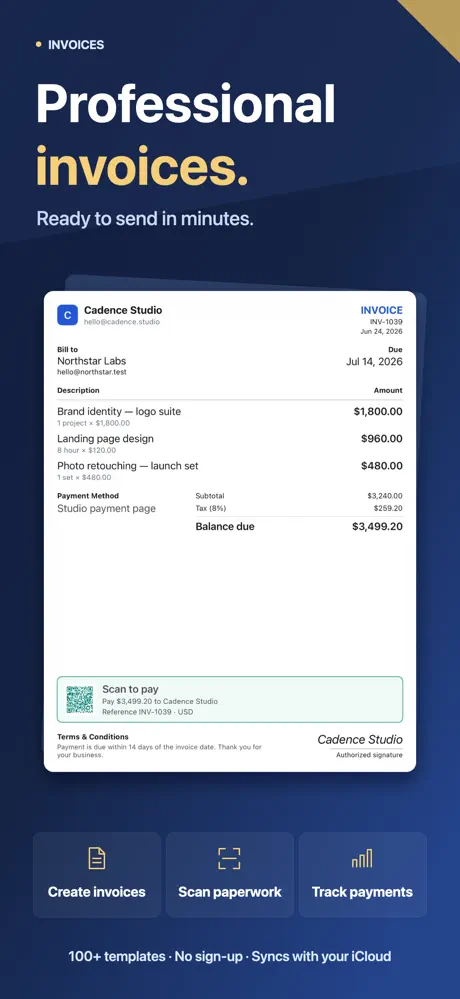
What a payment QR code on an invoice does
Every invoice you create in Invoice Maker can carry a payment QR code. It sits on the document alongside the totals, so a client with a printed copy, or the invoice open on another screen, can scan it and pay without typing your account details.
How a client actually pays with it
In general, a payment QR code encodes the details a payment app needs — when it is scanned with a phone's camera, the relevant banking or payment app opens with those details ready to confirm. Exactly which app opens depends on the client's own bank or payment provider and the QR type used, since payment QR formats vary by country and by bank, which is also why picking a QR type that matches the client's market matters more than picking one that looks a certain way. Invoice Maker doesn't process the payment itself or connect to a specific bank — it generates the QR code your client's own payment app then reads.
Pick the QR type that fits the market
Invoice Maker's QR Studio can generate 12 QR types in total, including a general payment QR code and a Pix QR code for the format used in some markets, alongside link, Wi-Fi, contact card, email, phone, SMS, chat, location, calendar and text QR codes. Sixteen ready-made designs are available for how the code looks — poster, menu card, sale tag, neon, business card and more — and four of them are free to use, with the rest, along with custom colors, dots and frames, available in Pro. Contrast and quiet zone are checked automatically, so the code you export keeps scanning correctly instead of failing silently because a color choice made it unreadable.
Track paid, unpaid, partial and overdue
Once an invoice is out, Invoice Maker shows its status at a glance: paid, unpaid, partial or overdue. You can record a payment as it comes in, and the app keeps an accurate outstanding balance so you always know what is still owed, even when a client pays part of an invoice now and the rest later. Sales reports then roll this up into income by month, your top clients, and what is still outstanding overall, which is a faster way to see who to follow up with than scrolling through every invoice one at a time.
Turn a paid invoice into a receipt
Once an invoice is paid in full, you don't need a separate receipt template. Share the same document again and it doubles as a receipt — the same invoice, marked paid, with the date it was settled, so the client's record of the payment matches the document they originally received.
Everything else the invoice can carry
The payment QR code sits alongside the rest of what an invoice needs: your saved clients, items and tax rates for one-tap reuse, discounts, shipping, payment methods, reusable terms, and a handwritten signature drawn right on your iPhone. Your logo, brand color and fonts carry across every invoice once you set them, so the document with the payment QR code on it still looks like the rest of your paperwork. You don't have to start from a blank invoice either — pick one of 100+ templates, or scan a paper invoice (or a photo of one) and it becomes an editable draft you can add a payment QR code to.
You can create three documents free, no account or sign-up needed, and four of the ready-made QR designs are free to use as well; free exports carry a small line at the foot of the page naming the app, and Pro switches that off along with unlocking unlimited invoices and QR exports. Either way, invoices, clients and QR codes sync privately through your own iCloud, the app works offline with no account required, and Recently Deleted keeps an invoice for 30 days in case one wrong tap deletes something you needed. See the Invoice Maker app page for the rest of what's included, or read how to write an invoice if you're starting from a blank one.